> For the complete documentation index, see [llms.txt](https://docs.concurrence.com/llms.txt). Markdown versions of documentation pages are available by appending `.md` to page URLs; this page is available as [Markdown](https://docs.concurrence.com/developer-guide/guides/scribe-capture-to-note.md).
# Scribe: Capture to Finalized Note
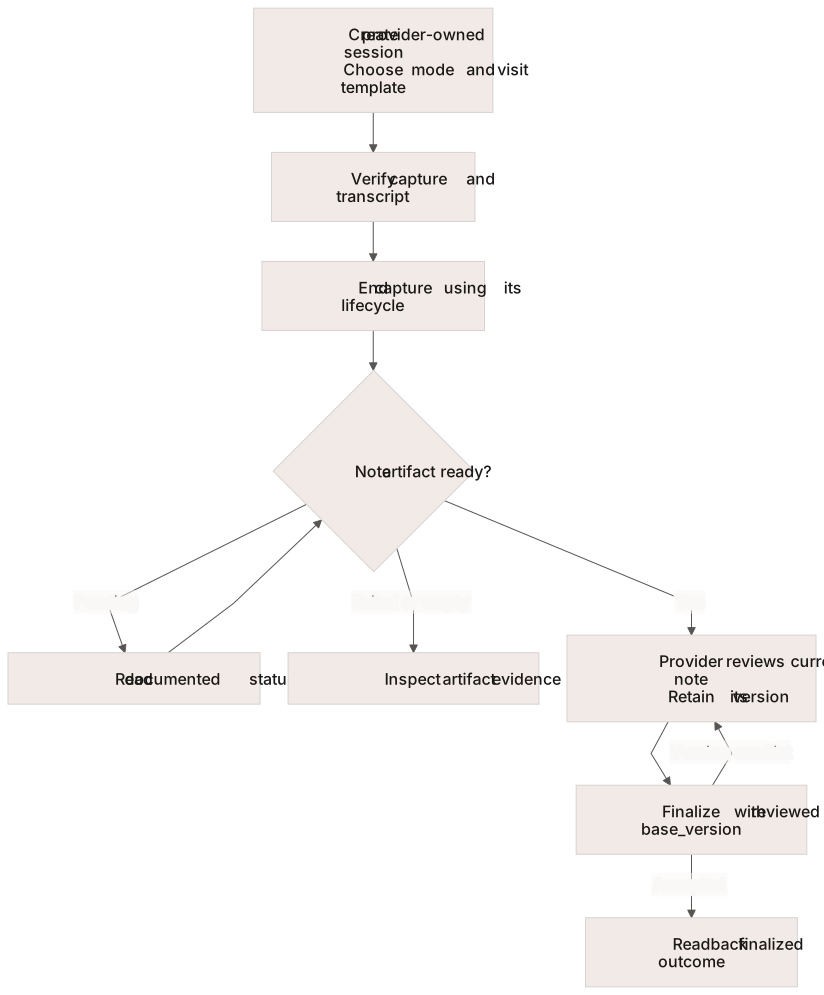
Prepare provider access, create an in-person or Zoom Scribe session, verify transcript and artifact readiness, and finalize the note the provider reviewed.
Use this workflow with a provisioned Scribe deployment and an authorized provider. For integration testing, use an approved synthetic encounter. Confirm the supported visit type and note template, capture method, required permissions, and recording/disclosure process before capture begins.
Capture, artifact readiness, provider review, and version-checked finalization are separate milestones.
## Prepare Access and Capture
Scribe uses its own deployment base and [provider-principal authentication](/developer-guide/platform-api/scribe.md#authentication). The provider's workspace must match the request, and access to a session is scoped to its owner. Read, session-write, and note-write scopes authorize different operations.
Choose in-person microphone capture or Zoom when creating the session. Mode cannot be changed later. Zoom requires the provider's connected account and the supported meeting/disclosure configuration. Use the assigned Scribe schema; Platform text-session endpoints are a different contract.
## Create and Capture
Follow [Create an In-Person Session](/developer-guide/platform-api/scribe/sessions.md#create-an-in-person-session) or [Create a Zoom Session](/developer-guide/platform-api/scribe/sessions.md#create-a-zoom-session). Supply a supported canonical visit type that resolves the note template, including where the generated request model marks the selection optional, and the provider's IANA `timezone`, which both create paths require. Record the returned session identifier.
Use the configured capture client and its supported attachment or Zoom controls. Check that recording has attached and usable transcript segments are arriving; session creation alone confirms neither.
## End Capture and Inspect Artifacts
Use the capture mode's [lifecycle operation](/developer-guide/platform-api/scribe/sessions.md#session-lifecycle). An in-person end can be refused while streaming remains attached; a Zoom end acknowledgement can precede transcript finalization. Read the resulting session and [artifact state](/developer-guide/platform-api/scribe/artifacts.md) separately.
Wait for the note's `generation_status` to reach `ready` before displaying it for review. Continue checking while it is `pending`, and handle `failed` and `empty` results explicitly. The provider then reviews the transcript, note, checklist, and coding suggestions; generated content and confidence values do not substitute for that review.
## Finalize the Reviewed Version
Read the current note and retain its version. If the provider edits it, [save the complete structured document](/developer-guide/platform-api/scribe/artifacts.md#save-an-edited-note) and retain the returned version. The provider reviews that version, then the client submits its `base_version` to [Finalize a Note](/developer-guide/platform-api/scribe/artifacts.md#finalize-a-note). If another edit produces a version conflict, reload and have the provider review the new version before submitting again.
Read back the submitted note and session outcome. When EHR writeback is enabled for the workspace, finalization also writes the note to the EHR: check `writeback_status`, and treat `ehr_writeback_failed` as a rolled-back finalize, so the note stays a draft. See [Finalize a Note](/developer-guide/platform-api/scribe/artifacts.md#finalize-a-note). If a separate integration sends the note to another clinical system, verify receipt there as well.
## Verify Failure and Cleanup
In the approved test deployment, verify the documented stale-version conflict using a mutable test note and an older version. Confirm that the current note remains intact, reload it, and complete the intended review path. Cancel an unfinished test session using the supported lifecycle; finalization and cancellation are not general data-deletion operations. Follow the agreed retention and test-data cleanup process.
Keep the session identifier, capture mode, artifact outcome, reviewed version, finalization result, and correlation identifiers. Use the [Scribe HTTP reference](https://docs.concurrence.com/api-reference/readme/scribe) for exact request and response contracts.
---
# Agent Instructions
This documentation is published with GitBook. GitBook is the documentation platform designed so that both humans and AI agents can read, navigate, and reason over technical content effectively. Learn more at gitbook.com.
## Querying This Documentation
If you need additional information that is not directly available in this page, you can query the documentation by asking a question.
Perform an HTTP GET request on the following URL with the `ask` and `goal` query parameters:
```
GET https://docs.concurrence.com/developer-guide/guides/scribe-capture-to-note.md?ask=&goal=
```
`ask` is the immediate question: it should be specific, self-contained, and written in natural language.
`goal` is what the user is ultimately trying to achieve, the reason they need the answer. Sharing it helps GitBook give you a better, more relevant answer. A goal is most helpful when it describes the outcome the user wants rather than restating the question. For example, with `ask=how do I create an API token`, a goal like `automate deployments from our CI pipeline` lets GitBook tailor the answer to that use case.
The response will contain a direct answer to the question and relevant excerpts and sources from the documentation.
Use this mechanism when the answer is not explicitly present in the current page, you need clarification or additional context, or you want to retrieve related documentation sections.